Video editing is no longer limited to professionals with high-end software. With apps like InShot, anyone can create stylish, engaging videos directly on their smartphone. Among the many features that make InShot popular, one of the most exciting is the ability to adjust video speed. Whether you want to create a dramatic slow-motion clip or a fast-paced time-lapse video, InShot makes the process simple, fun, and highly effective.
In this article, we’ll take a deep dive into how you can adjust video speed in InShot to achieve cinematic slow motion and creative time-lapse effects. We’ll also share some practical tips, best practices, and examples to help you make the most of this feature.
Why Adjust Video Speed?
Before we jump into the tutorial, let’s understand why changing video speed is such a powerful editing tool:
- Adds Emotion and Drama – Slow motion emphasizes moments, making them feel more emotional, intense, or epic. For example, slowing down the moment when a birthday cake is cut highlights the joy of the celebration.
- Saves Time and Creates Excitement – Time-lapse allows you to compress hours of footage into seconds. It’s perfect for showing processes like cooking, painting, or even travel journeys in a short, engaging way.
- Enhances Storytelling – Speed control lets you control the rhythm of your story. A combination of slow and fast clips can make your video more dynamic and fun to watch.
Getting Started: Importing Your Video
- Open InShot on your device.
- Tap Video, then select New Project.
- Choose the video clip you want to edit from your gallery.
- Tap the check mark (✔) to import the video into the editing timeline.
Now you’re ready to adjust the speed!
How to Adjust Video Speed in InShot
1.Select the Clip
- Tap on the video timeline to select the clip you want to adjust.
2. Find the Speed Tool
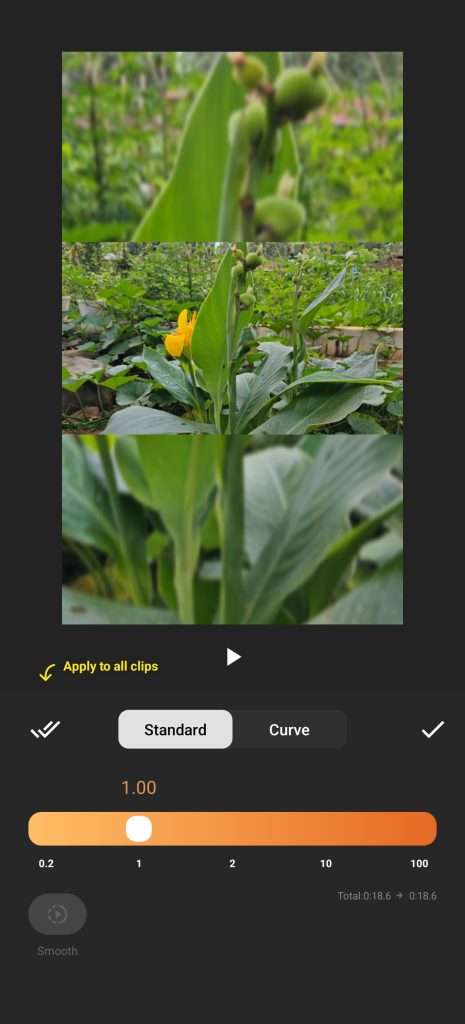
- At the bottom of the screen, scroll through the toolbar and tap Speed.
3.Choose Between Normal and Curve Options
- Normal Speed: Adjusts the entire clip at the same speed.
- Curve Speed: Allows you to gradually increase or decrease speed at different points for more advanced effects.
4.Set Your Desired Speed
- Slide the bar left to slow down the clip (e.g., 0.2x for dramatic slow motion).
- Slide the bar right to speed it up (e.g., 4x or 8x for time-lapse).
5.Preview and Fine-Tune
- Press play to preview your clip. If it feels too slow or too fast, adjust again until you’re satisfied.
Creating Slow Motion Effects
Slow motion is one of the most popular editing styles because it can turn ordinary moments into something extraordinary. Here’s how you can use it effectively in InShot:
- Sports Clips: Slow down a football kick, basketball dunk, or cricket shot to highlight the action.
- Celebrations: Capture moments like throwing confetti, dancing, or blowing candles in slow motion to add emotional impact.
- Nature Shots: Slowing down rainfall, waves, or a butterfly in flight can create a calming, cinematic feel.
Tip: For the smoothest slow motion, it’s best to record your video at a higher frame rate (e.g., 60fps or 120fps) on your phone. This prevents the video from looking choppy when slowed down.
Creating Time-Lapse Effects
Time-lapse is the opposite of slow motion. It’s about speeding up footage to show changes over time in a shorter period. In InShot, this is as easy as dragging the speed slider to the right.
- Travel Videos: Show a car ride, train journey, or airplane view in a quick, engaging way.
- Creative Projects: Record yourself painting, cooking, or building something, then use time-lapse to condense hours into minutes.
- Nature Scenes: Capture sunsets, clouds moving, or flowers blooming to create beautiful artistic clips.
Tip: Time-lapse works best with long, stable shots. Using a tripod will make the video smoother and more professional.
Using Curve Speed for Advanced Control
If you want more than just one consistent speed, InShot’s Curve Speed tool is perfect. It lets you create dynamic changes within the same clip:
- Speed Ramping: Start the clip in normal speed, gradually slow it down for dramatic emphasis, then speed it back up.
- Music Sync: Adjust the video speed to match beats in your background music, creating a professional, music-video feel.
- Highlight Key Moments: Use curve speed to slow down specific parts, like a smile or jump, while keeping the rest fast-paced.
To use Curve Speed:
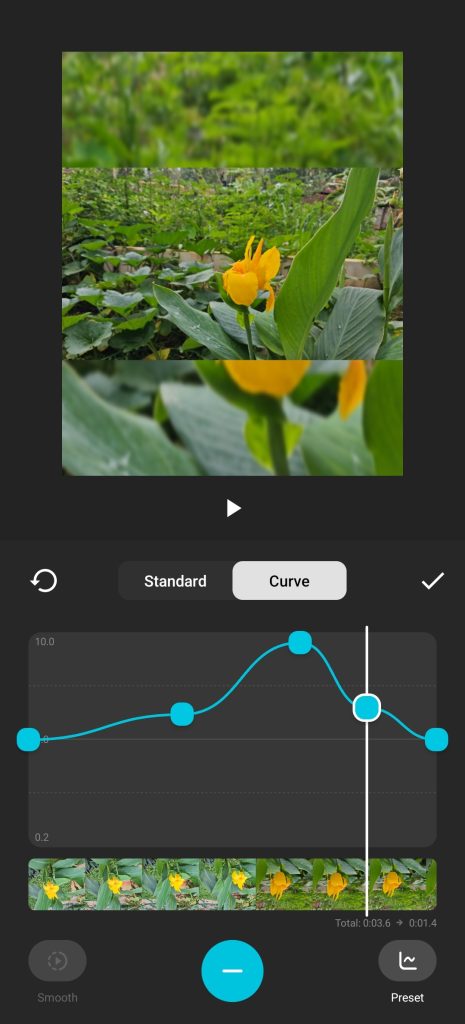
- Tap Speed > Curve.
- Choose a preset (Montage, Hero, Bullet, etc.) or create your own points on the curve.
- Adjust the sliders to control speed changes smoothly.
Tips for Professional Results
- Keep Audio in Mind
- When you change video speed, audio is also affected. For slow motion, voices may sound unnatural. Consider muting the original audio and adding background music.
- When you change video speed, audio is also affected. For slow motion, voices may sound unnatural. Consider muting the original audio and adding background music.
- Match with Music
- Slow-motion looks especially good with emotional or dramatic music, while time-lapse pairs well with upbeat or energetic tracks.
- Slow-motion looks especially good with emotional or dramatic music, while time-lapse pairs well with upbeat or energetic tracks.
- Don’t Overuse
- Slow motion and time-lapse are powerful, but too much of them can make your video feel unnatural. Use them to highlight special moments.
- Slow motion and time-lapse are powerful, but too much of them can make your video feel unnatural. Use them to highlight special moments.
- Combine Effects
- Mix slow motion, normal speed, and time-lapse in one video for variety and storytelling impact.
- Mix slow motion, normal speed, and time-lapse in one video for variety and storytelling impact.
- Export in High Quality
- After editing, export your video in HD (1080p or higher) for the best viewing experience on social media or larger screens.
- After editing, export your video in HD (1080p or higher) for the best viewing experience on social media or larger screens.
Example Ideas You Can Try Today
- Slow down a pet running toward you to capture the cuteness in detail.
- Speed up a cooking recipe to make it fun and easy to follow.
- Mix time-lapse of city traffic with slow motion of a person walking for contrast.
- Create a dramatic sports highlight reel by combining curve speed changes.
Conclusion
Adjusting video speed is one of the simplest yet most powerful ways to elevate your videos, and InShot makes it accessible to everyone. By experimenting with slow motion, time-lapse, and curve speed, you can bring creativity, drama, and excitement into your edits.
Whether you’re making videos for social media, YouTube, or personal memories, mastering speed control will instantly make your content stand out. The best part is, you don’t need professional equipment or complicated software—just your smartphone and the InShot app.
So, open InShot today, pick one of your favorite clips, and start experimenting. You’ll be amazed at how a simple speed adjustment can completely transform the mood and storytelling of your video.