Intro: Collages for Creative Reels & Comparisons
In the world of short videos and social media content, collage and split-screen videos are becoming more and more popular. They are widely used for creative reels, comparison videos, reaction edits, or even fun storytelling. Instead of showing just one clip at a time, you can combine multiple videos or photos into a single frame.
Apps like InShot make this process simple. Whether you want to show a before-and-after transformation, create a side-by-side comparison, or just add a stylish touch to your content, the collage tool in InShot can help you. In this tutorial, let’s go step by step and learn how to make collage and split-screen videos using InShot.
Steps:
1. Choose the Collage Option
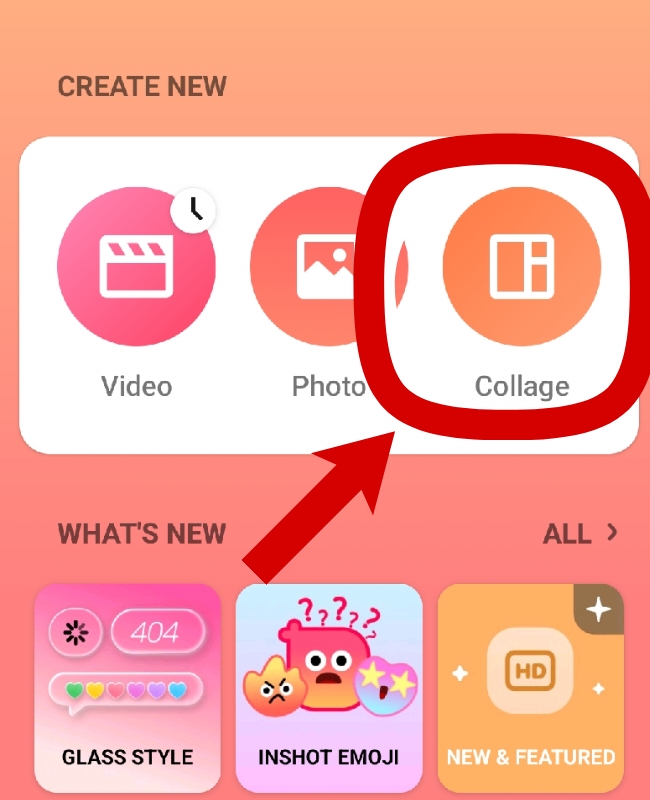
- Open the InShot app on your phone.
- From the home screen, tap on Collage.
- You’ll be asked to select photos and videos from your gallery. Choose the ones you want to use.
2. Import 2–3 Videos (or Photos)
- Select at least two or more clips to create a collage.
- You can also combine photos + videos if you want.
- After selecting, tap the checkmark to load them into the editing screen.
3. Adjust Layout
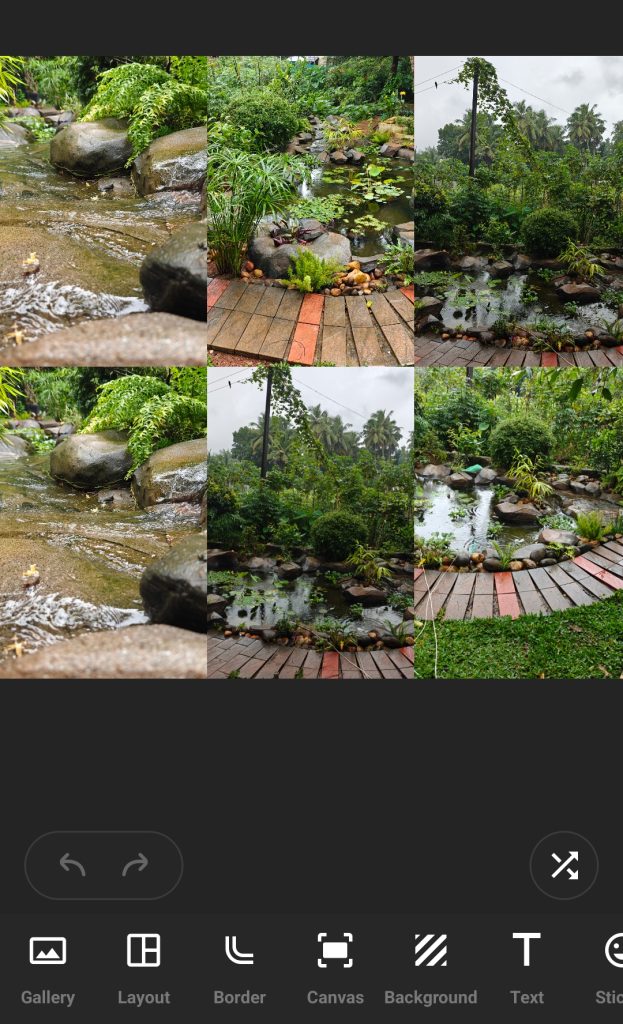
- InShot offers different collage templates and split-screen styles.
- You can adjust how your videos are placed—side by side, one on top of the other, or even in a grid format.
- Resize and crop the clips so they fit properly.
4. Add Music & Effects
- Once your layout is ready, tap on the Music option to add background music.
- You can also apply filters, stickers, or text to make it look more engaging.
- Preview your collage before finalizing.
Extra Tips
- Before/After Edits: Collage videos are perfect to show transformations like “before and after makeup,” “fitness progress,” or “room makeover.”
- Comparison Reels: Use split-screen to compare products, styles, or even two different angles of the same video.
- Consistency: Try to use similar brightness and colors for both clips so the collage looks professional.
FAQs
Q1: Can I mix photo + video in a collage?
👉 Yes! InShot allows you to combine both photos and videos in a single collage. You can play a video on one side while showing a static photo on the other.
Q2: Can I make a split-screen with more than two videos?
👉 Yes. You can add multiple clips, but remember that the more you add, the smaller each one becomes.