Video content has become one of the most powerful ways to share stories, promote businesses, or simply express creativity online. Whether you are creating videos for YouTube, Instagram, TikTok, or personal memories, mobile video editing apps like InShot and CapCut make it easy to produce professional-looking videos directly from your smartphone.
In this article, we’ll guide you through the basics of video editing using these two popular apps, highlight some intermediate techniques, and share tips to make your videos engaging. You’ll also see spaces where you can add your own screenshots to illustrate each step.
Why Choose InShot and CapCut
Both InShot and CapCut are beginner-friendly yet powerful video editing apps, making them perfect for creators of all skill levels.
InShot:
- Offers intuitive timeline-based editing
- Perfect for adding music, text, stickers, and effects
- Ideal for creating slow motion, time-lapse, and collages
CapCut:
- Provides more advanced features like keyframe animation, green screen, and transitions
- Strong for creative effects, filters, and cinematic editing
- Works well for social media-ready videos

Getting Started: Importing Your Video
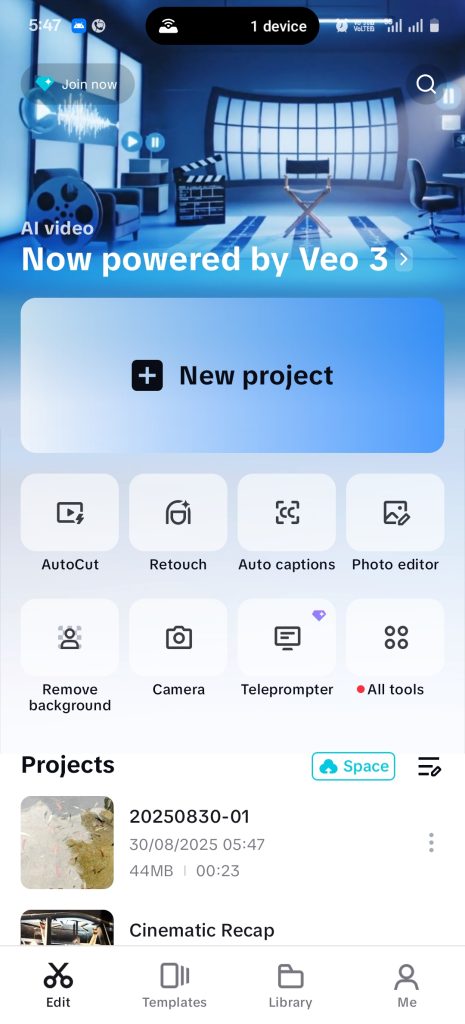
Before editing, you need to import your clips into the app. Both apps have simple import options:
In InShot:
- Open the app and tap Video → New Project
- Select the clip(s) from your gallery
- Tap the check mark to import
In CapCut:
- Open CapCut and tap New Project
- Choose video clips or photos from your device
- Tap Add to load them into the timeline
Basic Editing Tools
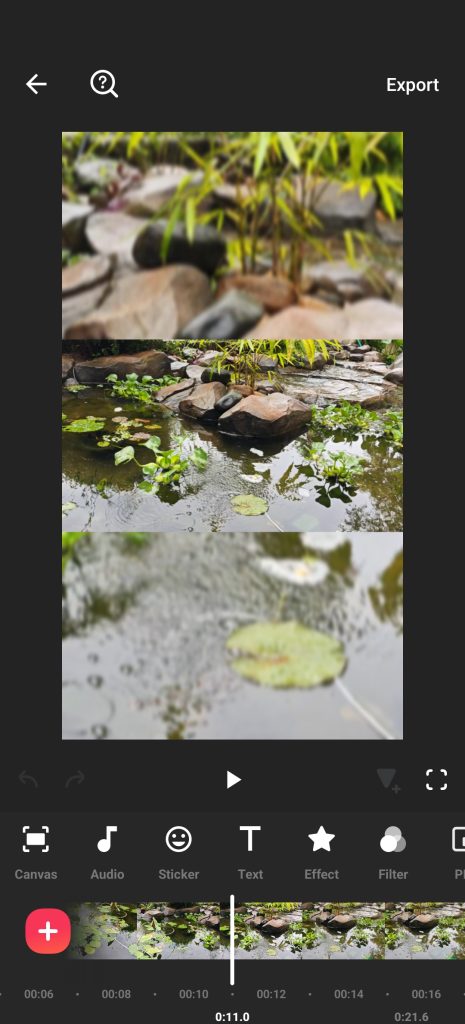
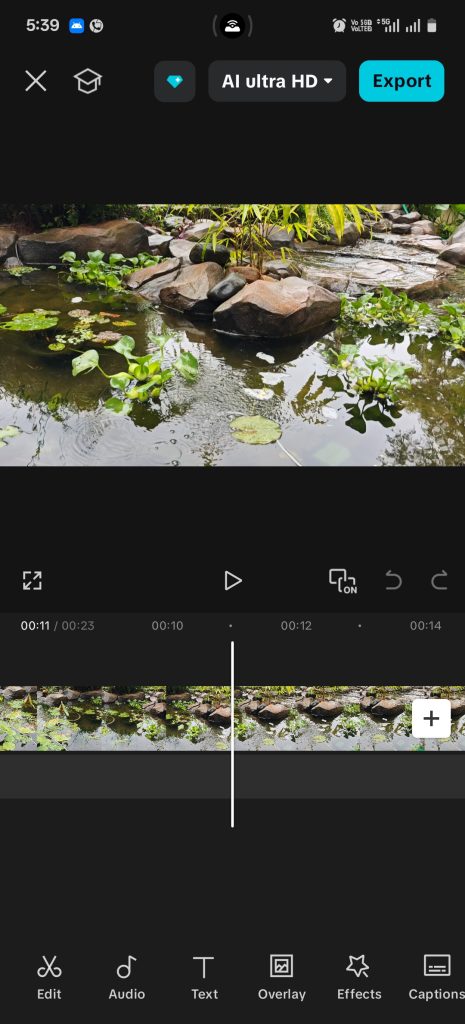
Once your video is imported, you can start editing. Both apps share several core editing features:
- Trim & Split – Cut unwanted parts, split clips into smaller segments for precise control.
- Adjust Speed – Create slow motion or time-lapse effects to add drama or excitement.
- Add Music – Sync background music to your video for better engagement.
- Text & Titles – Include captions, titles, or subtitles to make your video informative.
- Filters & Effects – Enhance the visual mood of your video with built-in filters and effects.
Intermediate Editing Techniques
Once you’re comfortable with the basics, it’s time to explore intermediate techniques that make your videos stand out:
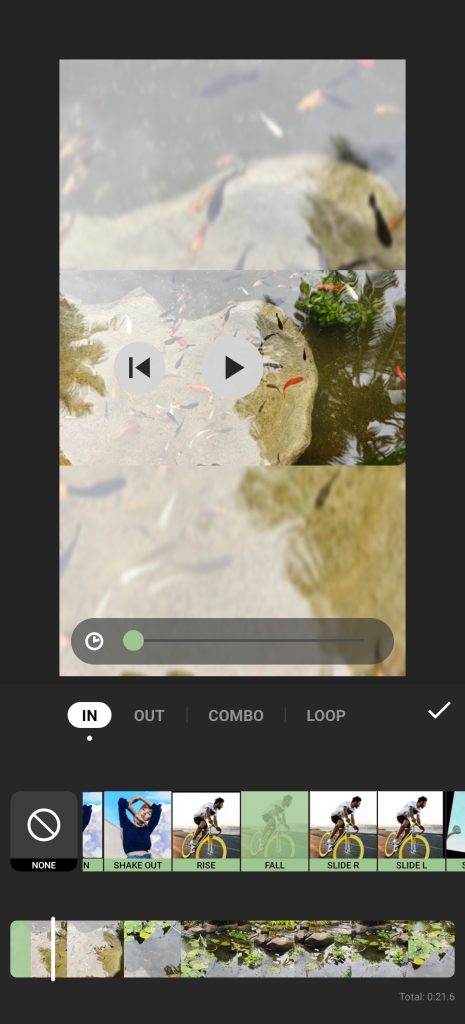
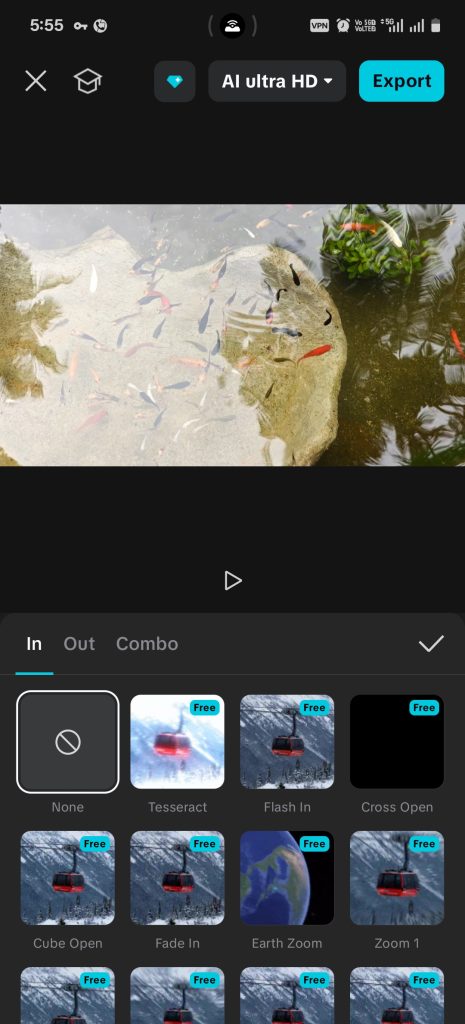
1. Transitions:
- Both apps allow smooth transitions between clips.
- Experiment with fade, slide, and zoom transitions to keep viewers engaged.
2. Stickers & Overlays:
- Add stickers, emojis, or shapes for fun and creative videos.
- Use overlays in CapCut to blend multiple clips or images seamlessly.
3. Color Correction & Filters:
- Adjust brightness, contrast, saturation, and hue to enhance your video’s look.
- Apply filters consistently for a professional, cohesive style.
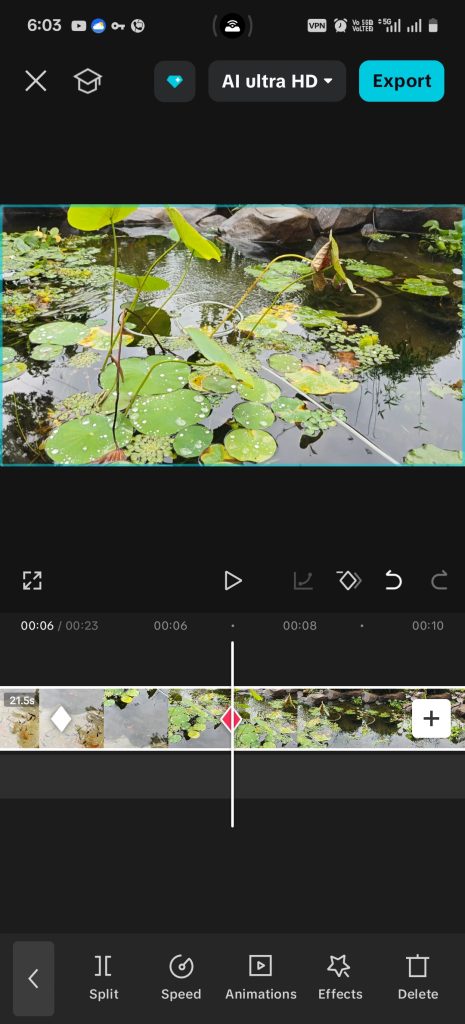
4. Keyframe Animations (CapCut):
- Animate text, stickers, or images across the screen.
- Keyframes help you create smooth motion and highlight important elements.
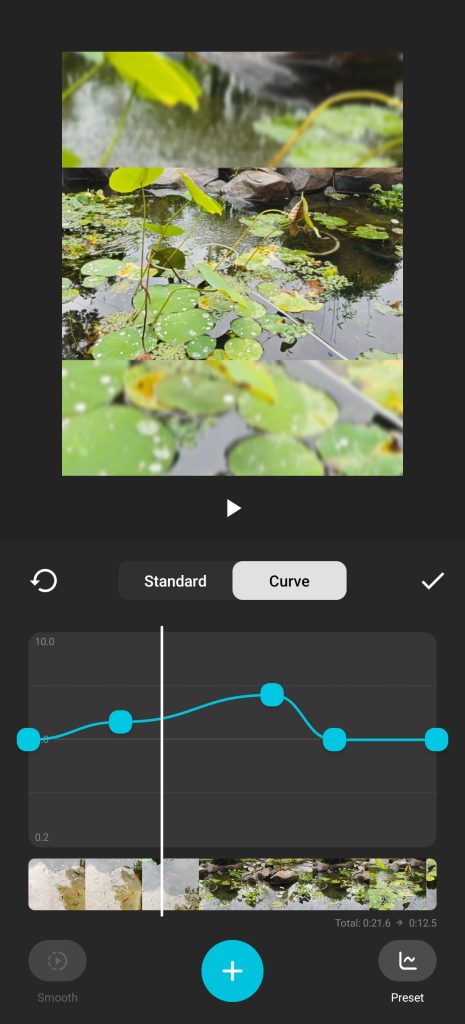
5. Curve Speed (InShot):
- Gradually change the speed of a clip for speed ramping effects.
- Perfect for emphasizing key moments in sports, celebrations, or dramatic scenes.
Exporting and Sharing Your Videos
Editing is only half the process. Exporting in high quality ensures your videos look professional on any platform.
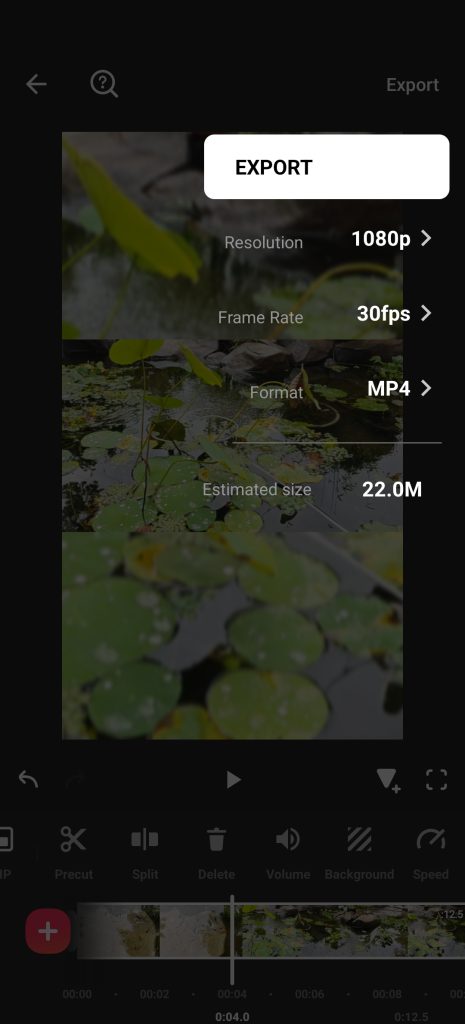
Tips for Exporting:
- Choose 1080p or higher resolution for sharp visuals
- Set the frame rate to 30fps or 60fps depending on your content
- Ensure audio quality is clear; adjust volume levels if necessary
Sharing:
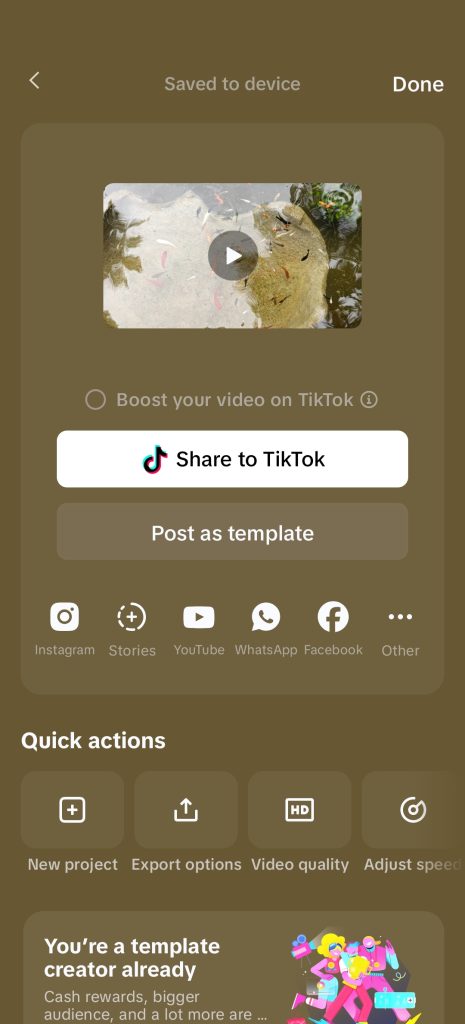
- Exported videos can be directly uploaded to Instagram, TikTok, YouTube, or shared via WhatsApp and email.
- Both apps make it easy to share directly without leaving the app.
Tips to Create Engaging Videos
- Plan Your Story: Even short videos should have a clear beginning, middle, and end.
- Use Music Strategically: Background music sets the mood; match clips to beats for dynamic pacing.
- Keep Clips Short & Engaging: Avoid long static shots to maintain viewer attention.
- Mix Speed Effects: Combine slow motion and time-lapse for variety.
- Experiment: Don’t be afraid to try filters, transitions, and animations to see what works best.
Why Mobile Video Editing is a Game Changer
With InShot and CapCut, anyone can create videos that look professional without expensive software or cameras. Mobile video editing apps make the process:
- Accessible – Edit anywhere, anytime, on your smartphone
- Fast – Quick editing and export to social media platforms
- Creative – Tons of effects, filters, and tools to bring your ideas to life
Whether you are a beginner or looking to improve your editing skills, these apps provide a flexible platform to experiment and grow as a creator.
Conclusion
Learning to edit videos with InShot and CapCut opens up endless creative possibilities. Start with basic trims, speed adjustments, and text overlays, then explore intermediate features like curve speed, keyframes, transitions, and color correction. The more you practice, the more confident you will become in producing polished, engaging videos.
Remember, video editing is not just about tools; it’s about storytelling, creativity, and sharing your vision with others. With these mobile apps, you can create content that looks professional, captivates your audience, and is ready to share across social media platforms.
By following this guide, beginners and intermediate editors alike can master mobile video editing and take their videos to the next level using InShot and CapCut.