Add Stickers, Emojis, and GIFs
Video editing has become one of the most fun and expressive ways to share stories online. Whether you’re making YouTube vlogs, Instagram Reels, or short tutorial videos, adding stickers, emojis, and GIFs can make your content more entertaining and visually appealing.
If you’re using the InShot app, you already have a powerful tool in your hand. InShot is one of the most popular and beginner-friendly video editing apps for Android and iPhone. It offers a variety of creative options, including adding stickers, emojis, and animated GIFs to your videos with just a few taps.
In this article, you’ll learn how to add stickers, emojis, and GIFs in InShot, along with expert tips to use them creatively without overdoing it.
Why Add Stickers, Emojis, and GIFs to Videos?
Before diving into the steps, let’s understand why these visual elements are so popular in modern video editing.
- 🎨 Boost Creativity: Stickers and emojis bring life and expression to your videos, making them more engaging and fun to watch.
- 😄 Express Emotions: Emojis quickly convey feelings — happiness, surprise, or excitement — without needing words.
- 🕺 Add Humor and Personality: Funny stickers or GIFs help your viewers connect with your personality and style.
- 🔥 Grab Attention: Creative visuals keep viewers hooked, especially in short-form videos like Reels or Shorts.
- 💡 Highlight Key Moments: Use stickers or GIFs to emphasize reactions, quotes, or important parts of your video.
When used wisely, these small touches can make your content look professional yet personal.
Getting Started with InShot
If you haven’t already, download and install InShot from the Google Play Store or Apple App Store. Once it’s installed, open the app and tap on Video → New Project to start editing.
You can import videos from your gallery, trim them, adjust the ratio (for YouTube, Instagram, TikTok, etc.), and then start adding stickers and effects.
How to Add Stickers in InShot
Let’s start with stickers, one of the most creative tools inside InShot.
Step 1: Open Your Project
Open your video project in InShot. Tap the clip on the timeline to select it.
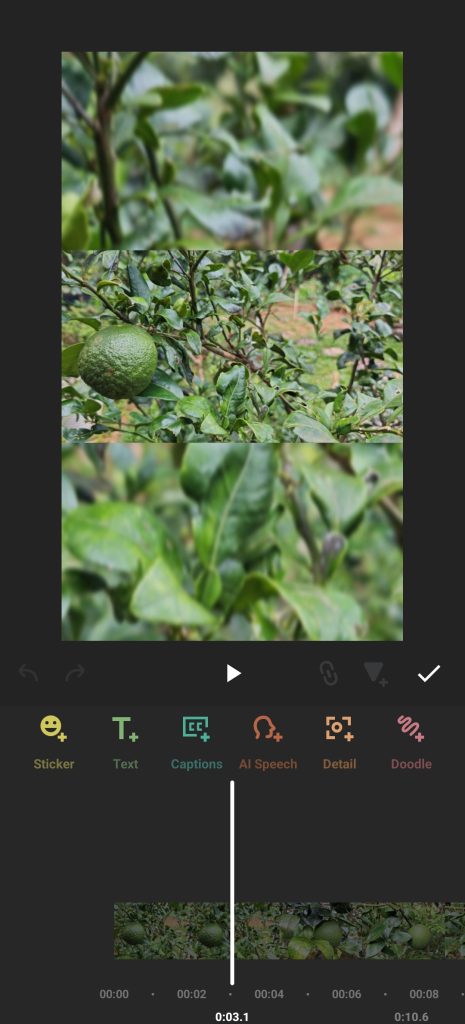
Step 2: Tap on the Sticker Icon
At the bottom of the editing toolbar, you’ll find an option labeled “Sticker” (it looks like a smiling face). Tap it.
Step 3: Choose a Sticker
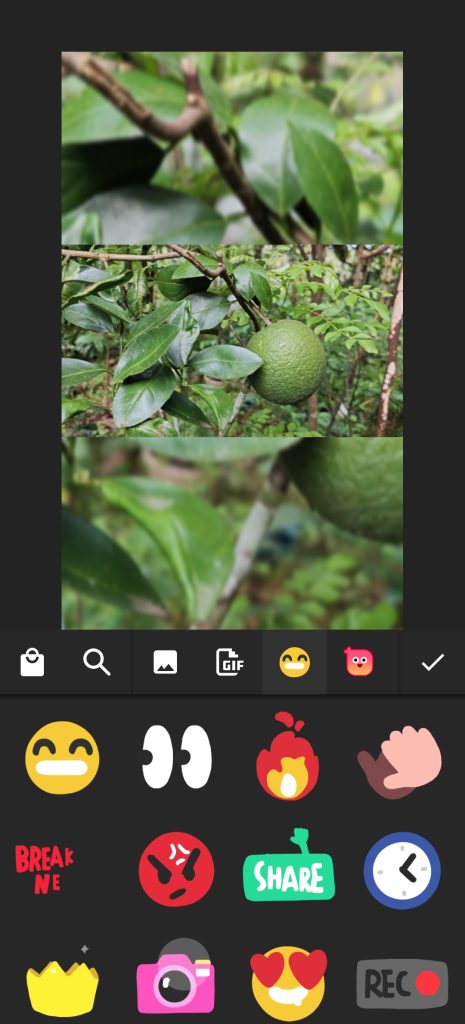
You’ll see a variety of built-in sticker options — from arrows and hearts to speech bubbles and decorative icons.
You can:
- Browse through different categories like emotions, shapes, or effects.
- Use animated stickers that move and make your video feel lively.
Step 4: Adjust Placement and Duration
After selecting a sticker:
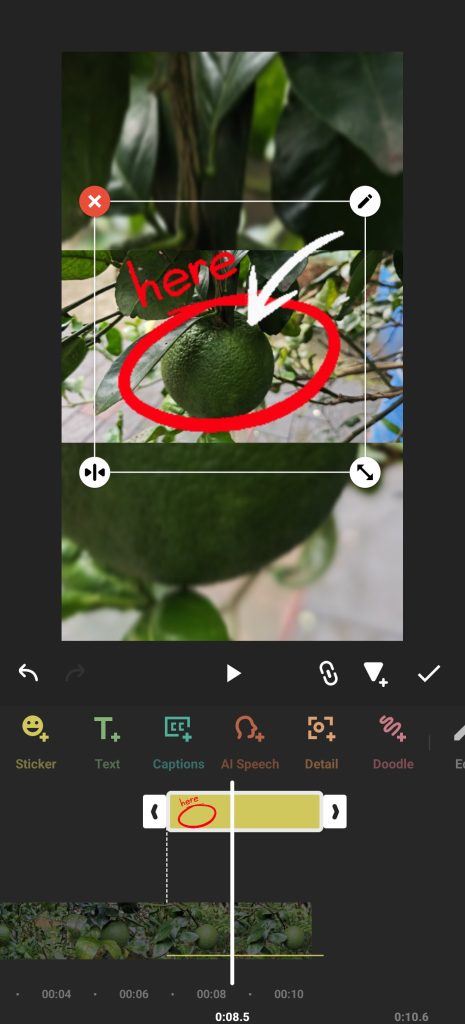
- Drag it on the preview screen to move it.
- Use two fingers to resize or rotate it.
- Adjust how long the sticker stays on screen using the timeline below.
You can even make the sticker appear only at a specific moment — for example, during a reaction or funny part of the video.
Step 5: Add Multiple Stickers
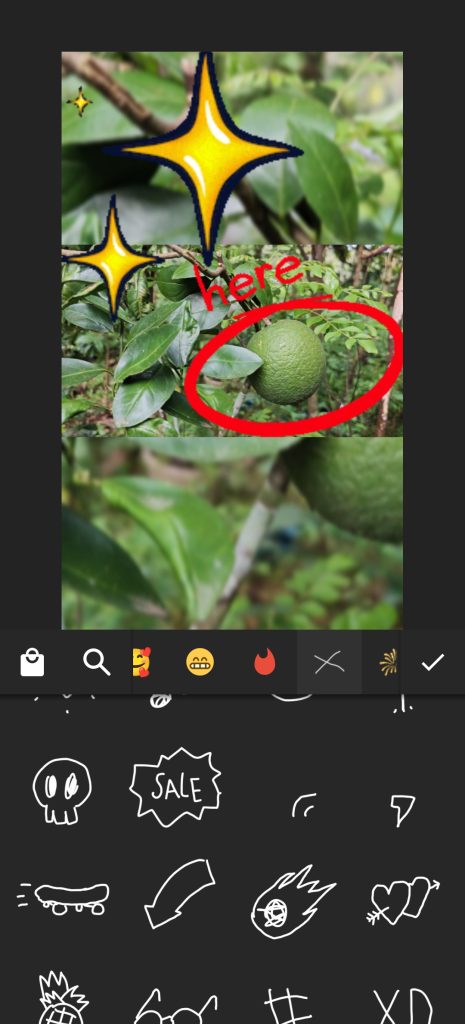
You’re not limited to one sticker! Add as many as you like to highlight moments or create visual storytelling.
However, try not to overload your video — too many stickers can look messy.
How to Add Emojis in InShot
Emojis are a fun way to express emotions and reactions quickly.
Step 1: Go to the Sticker Menu
Tap the Sticker button again in the toolbar.
Step 2: Tap on the Emoji Tab
Inside the sticker menu, you’ll find an emoji section showing your phone’s emoji library.
Step 3: Select and Place Emojis
- Choose the emoji that fits your mood or message.
- Drag it anywhere on the screen.
- Adjust size, angle, and opacity for the best look.
For example:
- Use 😂 for funny scenes.
- ❤️ for romantic moments.
- 😮 to show surprise.
Step 4: Animate Emojis
Want your emoji to move or fade? Tap the emoji and choose Animation.
You can make it slide, zoom, pop in, or fade out for a more dynamic look.
How to Add GIFs in InShot
GIFs are short, looping animations that can make your videos more expressive. Adding them is easy with InShot.
Step 1: Tap the Sticker Option
Once again, open the Sticker tool from the bottom toolbar.
Step 2: Tap the GIF Section
You’ll see a GIF tab that connects to GIPHY, the internet’s biggest GIF library.
Step 3: Search for a GIF
Type a keyword like “funny,” “applause,” “reaction,” or “fire” to find relevant GIFs.
You can browse trending or popular ones too.
Step 4: Add and Position the GIF
Once you select a GIF:
- It will appear on your video preview.
- Resize and move it to the perfect spot.
- Control its duration in the timeline.
GIFs are great for adding humor, reactions, or emphasis — just remember to keep them contextually relevant.
Creative Tips to Use Stickers, Emojis, and GIFs Smartly
Adding these elements creatively can transform your videos from plain to engaging. Here are some pro tips:
🎯 1. Match the Mood
Use stickers and emojis that fit the emotion of your scene. Don’t add laughing emojis in a serious part of your video.
🌈 2. Maintain Balance
Less is more! Instead of covering the whole screen, place stickers thoughtfully. Keep your visuals clean and focused.
✨ 3. Use Animations Wisely
Animated stickers and emojis make your video dynamic. However, too many animations can look chaotic.
🔊 4. Sync Stickers with Music or Sound
You can make emojis or GIFs appear exactly when a beat drops or a sound effect plays — this makes your video more rhythmic.
💬 5. Add Text with Stickers
Combine text with stickers for better storytelling. For example, use a speech bubble sticker and write your dialogue inside it.
🎥 6. Use Stickers for Branding
You can even add your logo sticker or watermark in the corner of your videos to build brand identity.
How to Remove or Edit Stickers in InShot
If you change your mind about a sticker:
- Tap the sticker in the timeline or preview area.
- Select Delete to remove it.
- You can also edit timing or animation anytime by reselecting the sticker.
This flexibility allows you to experiment freely without worrying about mistakes.
Exporting Your Video
After finishing your creative touches:
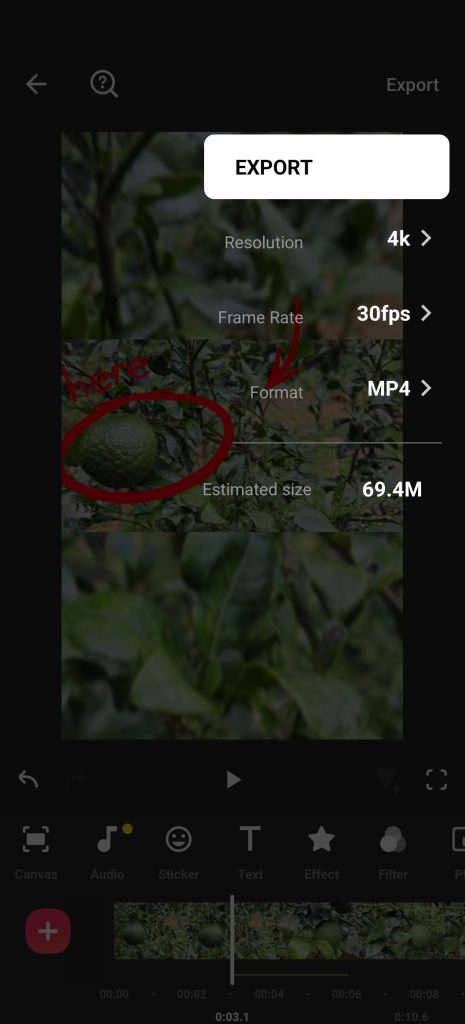
- Tap the Export button (top-right corner).
- Choose your preferred resolution — 720p, 1080p, or 4K.
- Save the video to your device or share it directly on YouTube, Instagram, TikTok, or WhatsApp.
Always preview your video before saving to make sure stickers and GIFs appear at the right moments.
Benefits of Using InShot for Creative Editing
Here’s why InShot stands out for mobile editors:
- ✅ User-friendly interface – perfect for beginners.
- 🎬 Huge sticker and GIF library – includes trending and animated options.
- 🎵 Music and text tools – allows full creative control.
- 📱 No heavy device needed – works smoothly on most phones.
- 💾 High-quality exports – ideal for YouTube and social media creators.
Whether you’re a casual editor or a content creator, InShot gives you everything you need to make professional-looking videos on your phone.
Conclusion
Adding stickers, emojis, and GIFs in InShot is one of the easiest ways to make your videos more creative and engaging. With just a few taps, you can express emotions, highlight key moments, and connect with your audience in a fun and personal way.
Remember — creativity lies in balance. Use these elements thoughtfully, match them to your video’s mood, and always preview your edits before sharing.
So, open InShot today, explore the stickers and GIFs library, and start giving your videos that unique, expressive touch your audience will love!