Creating engaging videos is no longer limited to professional editors sitting in front of heavy computers. With apps like InShot, anyone with a smartphone can edit videos for social media, YouTube, or personal projects. One of the most important elements that makes a video stand out is the background music. Adding and syncing the right track can completely change the mood of your video and make it more appealing to viewers.
In this article, we’ll walk you through how to add and sync background music with your video in InShot. Whether you are a beginner who just downloaded the app or someone looking to polish your editing skills, this guide will help you master the process.
Why Add Background Music to Your Video?
Before we dive into the steps, let’s understand why music plays such a crucial role in video editing:
- Enhances Emotions – Music sets the tone. A calm piano track can make your video relaxing, while upbeat beats can make it energetic and exciting.
- Keeps Viewers Engaged – A silent video often feels dull. Background music keeps the audience hooked.
- Professional Touch – Even a simple video looks professional when paired with well-synced music.
- Storytelling – Music helps narrate the story behind your visuals. For example, suspenseful music adds tension, while cheerful tunes create positivity.
Getting Started with InShot
If you haven’t already, download the InShot Video Editor from the Google Play Store or Apple App Store. It’s free to use, though some advanced features and premium music tracks require a subscription.
Once installed, open the app and select Video. You can choose footage from your gallery or record a new one directly within the app. After importing your video, you’ll see InShot’s user-friendly editing timeline at the bottom.
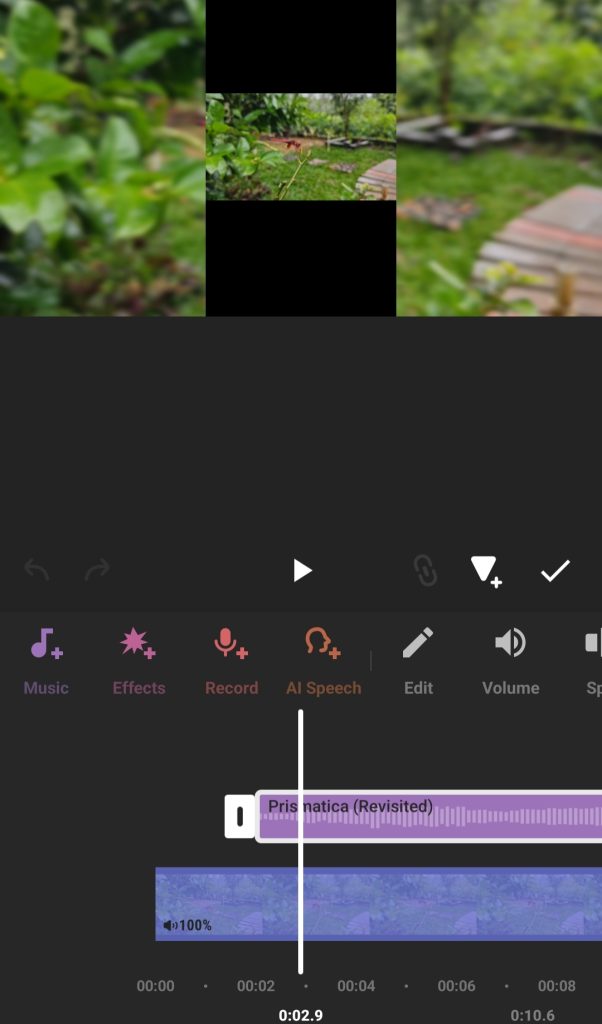
Step 1: Open the Music Tool
- Tap on the Music option from the toolbar.
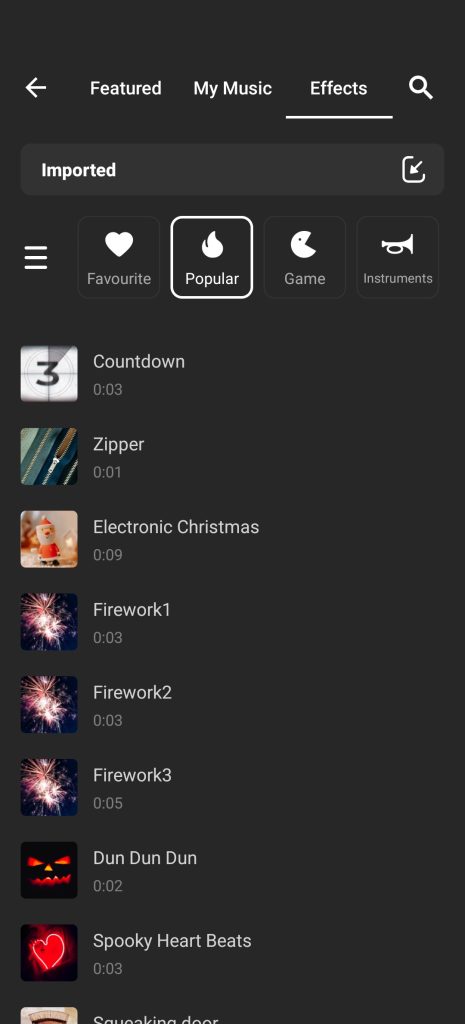
- You’ll see three tabs: Tracks, Effects, and Record.
- Tracks – For adding background songs or instrumental music.
- Effects – For adding sound effects like claps, laughter, or whoosh sounds.
- Record – For recording your own voiceover.
For background music, we’ll focus on the Tracks tab.
Step 2: Choose the Right Background Music
When you enter the Tracks section, InShot provides you with different options:
- Featured Music – Pre-loaded tracks offered by InShot. Some are free, while others require the Pro version.
- My Music – Lets you import music from your phone’s storage.
- iTunes (iOS only) – Allows importing songs purchased from iTunes.
👉 Tip: Always make sure you have the right to use the music. Using copyright-free or licensed tracks is important if you plan to upload videos to YouTube or monetize them.
Step 3: Add the Music Track
- Select the desired track.
- Tap Use to insert it into your video timeline.
- The music track will appear below your video timeline.
You can now drag and adjust the length of the music to match your video.
Step 4: Sync Music with Your Video
Adding music is easy, but syncing it properly makes your video shine. Here’s how you can do it in InShot:
1. Adjust the Start Point
- Drag the music track left or right to decide where the song should begin.
- For example, if your video starts with an intro clip, you may want the beat to drop right after that.
2. Trim the Music
- Tap on the music track and choose Trim.
- You can cut out unwanted parts of the song and keep only the portion that fits your video.
3. Split and Edit
- If your video has multiple scenes, use the Split option on the music track.
- This way, you can adjust different sections separately, matching the rhythm with your video transitions.
4. Control Volume
- Tap the track and adjust the Volume slider.
- Keep the music softer if your video has dialogues, or louder if it’s a montage.
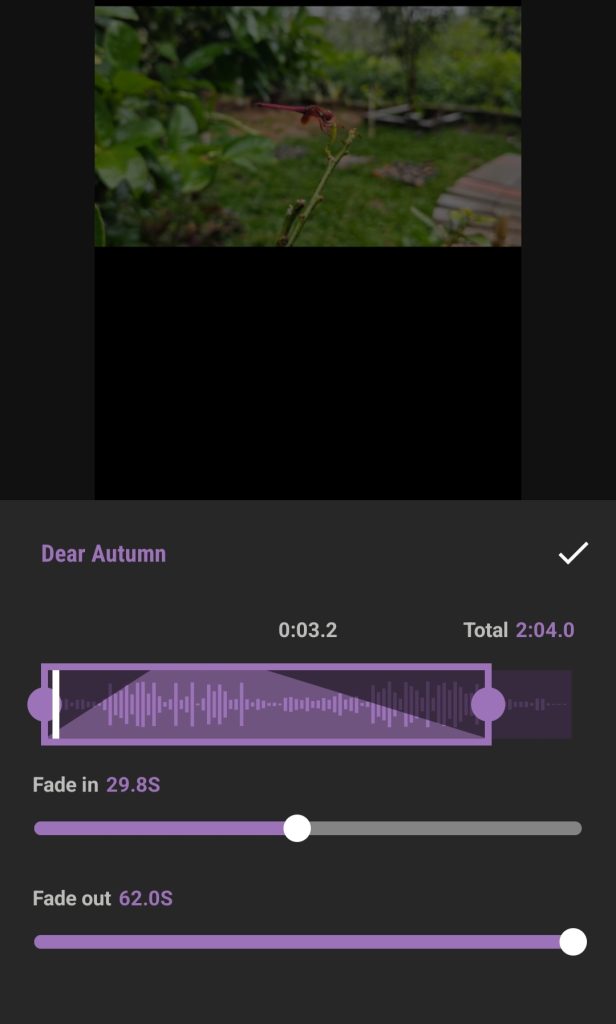
Step 5: Use Fade In and Fade Out
One of the most professional touches you can add is the fade effect:
- Fade In – Gradually increases the volume at the beginning.
- Fade Out – Smoothly lowers the volume at the end.
To apply:
- Tap on the music track.
- Select Fade and adjust the duration.
This prevents your music from starting or stopping abruptly, creating a smoother experience for viewers.
Step 6: Add Multiple Tracks (Optional)
InShot allows you to add more than one audio track. For example:
- A background song for the entire video.
- Sound effects for specific actions (like a camera click or applause).
- A recorded voiceover to explain what’s happening.
You can layer them easily by going back to the Music section and adding more tracks.
Step 7: Preview and Fine-Tune
Once your music is placed, always preview your video:
- Check if the music syncs with your video cuts or transitions.
- Ensure the music doesn’t overpower dialogues or voiceovers.
- Adjust timing and volume until it feels natural.
Exporting Your Video
After syncing your background music, tap the Export button at the top-right corner. Choose your resolution (720p, 1080p, or higher) and frame rate. InShot will process the video with music, ready to share on YouTube, Instagram, or any platform.
Pro Tips for Better Music Syncing
- Match the Beat with Cuts – If your song has a strong beat, align video transitions to those beats for a professional effect.
- Use Short Loops – Instead of one long track, sometimes looping a short instrumental works better.
- Balance Music and Voice – When using narration, keep the music volume at around 20–30% so your voice remains clear.
- Experiment with Genres – Try different music styles to see which fits your video’s mood best.
Common Mistakes to Avoid
- Using Copyrighted Music Without Permission – This can lead to your video being muted or taken down on YouTube. Always use royalty-free tracks.
- Too Loud Music – Overpowering background music can annoy viewers. Keep it balanced.
- Poor Timing – If the music doesn’t match the mood of the visuals, the video feels disconnected.
Conclusion
Adding and syncing background music in InShot is simple once you get the hang of it. With just a few taps, you can transform a plain video into a polished, professional-looking creation. Remember to experiment with different tracks, adjust volumes, and make use of fade effects to get the perfect balance.
Whether you’re making a travel vlog, a product demo, or a personal montage, the right background music will bring your story to life. Now that you know how to do it step by step, open InShot, pick your favorite song, and start editing today!