Introduction: Why Subtitles Matter
Subtitles and captions have become an essential part of video editing today. Whether you’re uploading content to YouTube, Instagram, TikTok, or Facebook, having clear subtitles can increase audience engagement. Many viewers scroll through social media without sound, and captions help them understand your message instantly. Subtitles are also important for accessibility, allowing people with hearing difficulties to enjoy your content.
InShot makes it easy to add text, captions, and subtitles to videos without needing advanced editing skills. In this guide, we’ll walk step by step through the process of adding subtitles in InShot, customizing their style, and syncing them properly with your video.
Step 1: Import Your Video
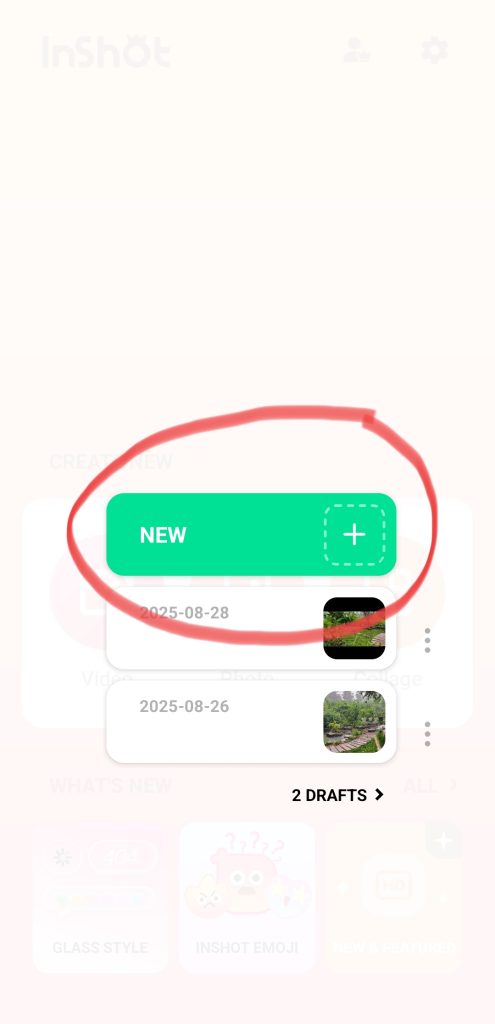
Open the InShot app on your Android or iOS device. From the home screen, tap Video and select the clip you want to edit. After importing, the timeline will appear at the bottom of your screen where all your edits will happen.
Step 2: Add Text for Subtitles
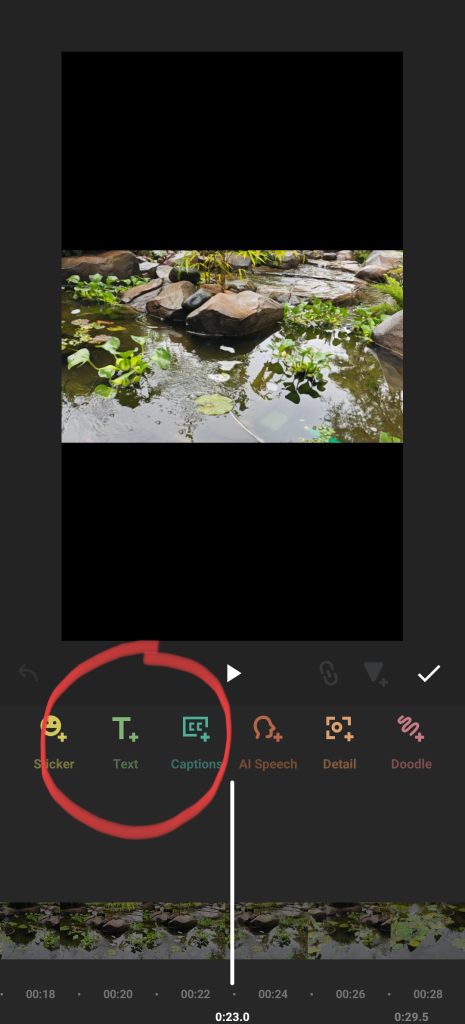
To add a subtitle, tap the Text (T) option. A text box will appear where you can type your words. Write the subtitle for that part of the video. You can drag the box anywhere on the screen, but for subtitles it’s best to keep them at the bottom center, where viewers are used to seeing them.
Step 3: Sync with Audio Manually
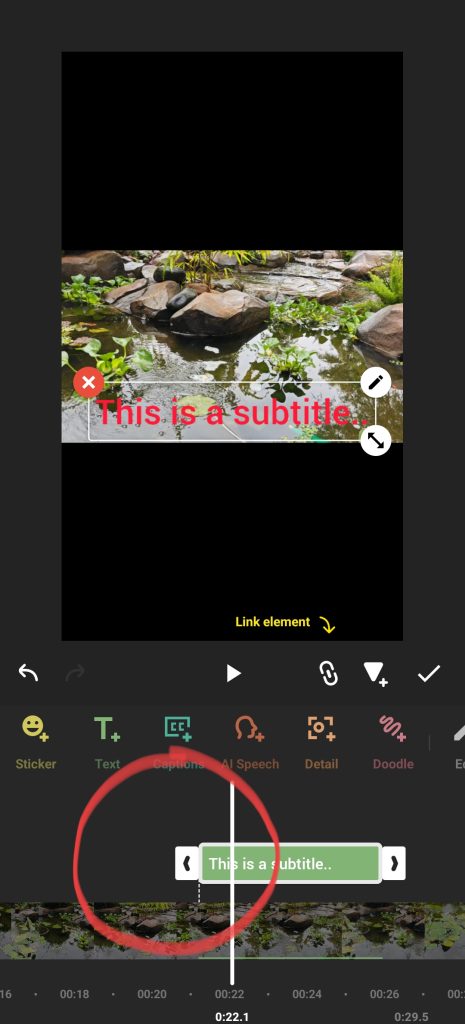
Subtitles need to match the audio timing. Drag the edges of the text layer in the timeline to adjust how long it stays visible. Play the video and listen carefully, then move the text layer to align it with the spoken words. Repeat this step for every line of dialogue or narration.
This process may take some time, but it ensures accuracy. InShot currently does not provide automatic subtitle generation, so manual syncing is the best method.
Step 4: Style and Position Your Subtitles
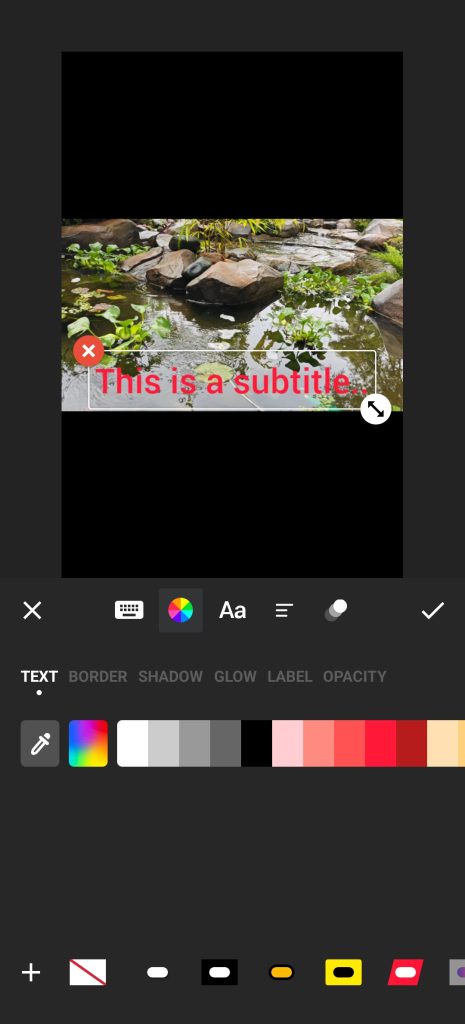
After syncing, customize your subtitles so they are clear and easy to read:
- Font: Choose a simple, readable font.
- Size: Keep it medium—not too small or too large.
- Color: White text with a black outline is the most common for visibility.
- Background: InShot also lets you add a semi-transparent background to make text stand out.
Position the text slightly above the bottom edge to avoid getting cut off in different screen sizes.
Extra Tips:
- Use the same font, color, and size throughout the video for a professional look.
- If you’re making content for your brand, use your brand’s colors in subtitles to strengthen recognition.
- Save a preset style in InShot so you don’t need to redesign each subtitle manually.
FAQs
Q1: Does InShot support automatic subtitles?
Currently, InShot does not offer an auto-subtitle feature. You need to add and sync captions manually.
Q2: Can I use subtitles in different languages?
Yes, you can add multiple subtitle layers in different languages if you want your content to reach a wider audience.
Q3: Will subtitles appear after exporting?
Yes. Once you export the video, the subtitles will be permanently visible (burned in).
Conclusion
Adding subtitles in InShot is simple but powerful. It increases reach, boosts engagement, and makes your videos accessible to everyone. With clear, well-styled captions, your videos will stand out on social media and attract a wider audience.