Introduction: Why Blur Backgrounds?
Blurring the background is one of the most popular effects in modern video editing, especially for portrait-style videos, vlogs, or professional interviews. This effect helps focus attention on the subject while hiding distracting elements in the background. On platforms like YouTube Shorts, Instagram Reels, and TikTok, blurred backgrounds are often used to repurpose horizontal videos into vertical format without cropping important content.
InShot provides an easy way to blur video backgrounds without needing expensive cameras or advanced software. Let’s see how you can do it in just a few steps.
Step 1: Import Your Video
1. Open your video in InShot.
2. From the toolbar at the bottom, tap Background.
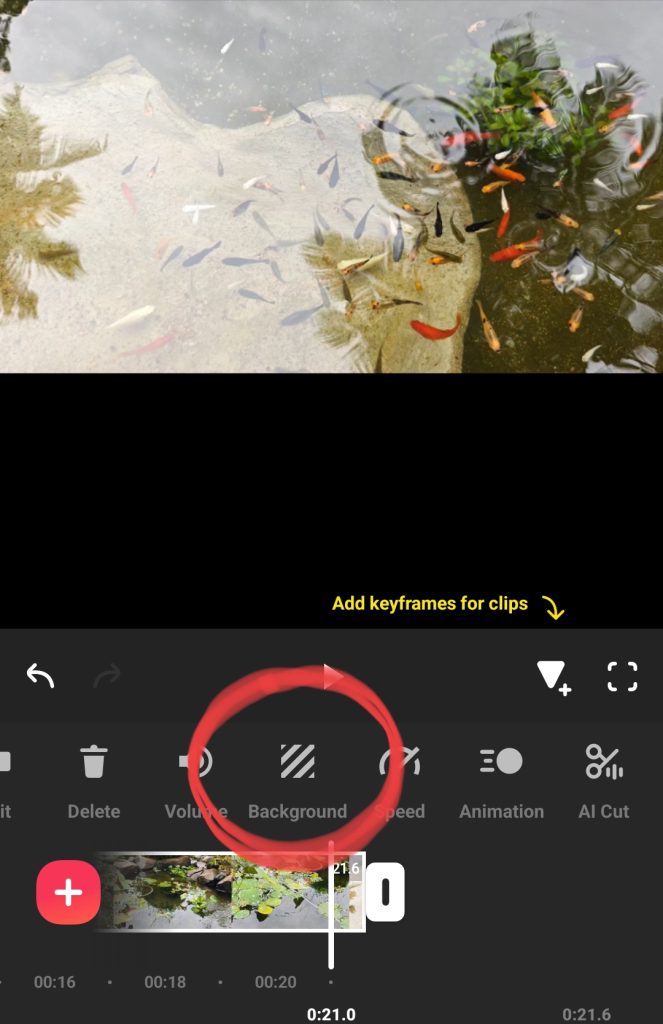
3. You’ll see several options:
- Colors
- Gradients
- Patterns
- Blur → This blurs the edges using your video itself as the background.
4. Select Blur → you can adjust the blur strength with the slider.
- Tap the ✓ checkmark to apply.
Step 2: Apply and Adjust Background Blur
Choose Blur as your background style. InShot automatically creates a blurred version of your video in the empty spaces. You can increase or decrease the blur intensity using the slider until it looks just right.
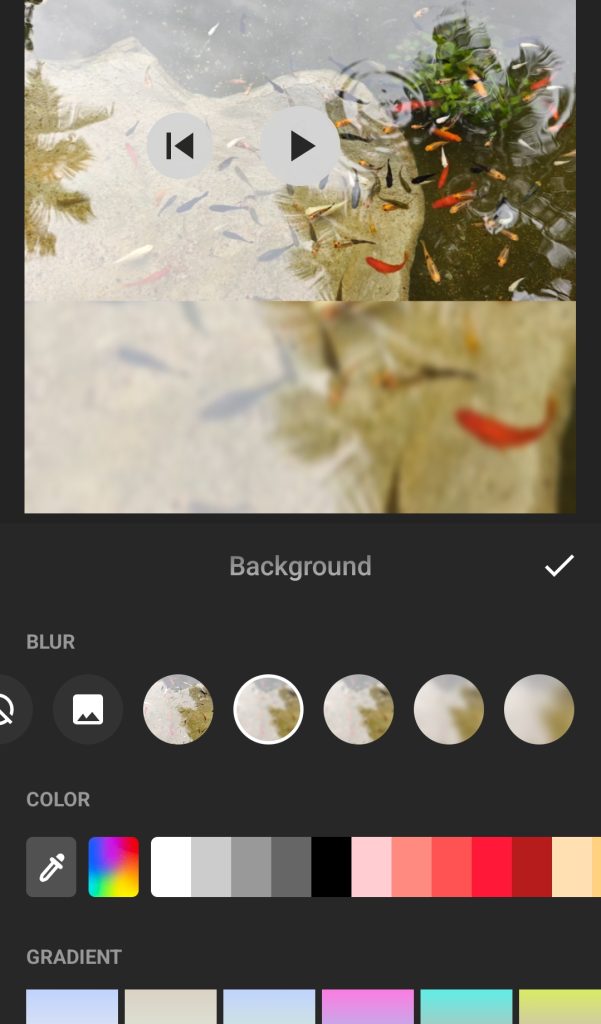
This effect ensures your video fits perfectly into social media platforms without black borders, while still looking professional.
Extra Tips:
- Vertical videos: Blur is especially useful when converting landscape videos into vertical formats like 9:16.
- Portrait shots: Blur makes the subject stand out more clearly.
- Mix with color backgrounds: InShot also allows you to use solid colors or images as backgrounds if you don’t want blur.
FAQs
Q1: Can I replace the background instead of blurring it?
InShot does not currently have a green screen (chroma key) feature in the free version, but you can replace backgrounds in some other editing apps. For now, blur and color backgrounds are the main options in InShot.
Q2: Does blur reduce video quality?
No, the blur effect doesn’t reduce the resolution. Your video quality remains the same after export.
Q3: Is background blur available in the free version?
Yes, the blur effect is available in both free and Pro versions of InShot.
Conclusion
Blurring backgrounds in InShot is a simple yet powerful way to make your videos look polished and professional. Whether you’re repurposing old content for Reels or making portrait videos stand out, this feature ensures your audience focuses on what matters most—you.