Transitions are the secret ingredient that connects different clips in a video. Without them, a video may feel choppy or abrupt. With smooth transitions, your video flows naturally and looks professional.
InShot has a wide range of transitions that are simple to apply. Let’s see how to use them step by step.
Why Transitions Are Important
- Make video flow smoother.
- Add a stylish touch (slides, fades, glitches).
- Keep viewers engaged.
👉 Example: Instead of jumping directly from one travel scene to another, use a smooth fade or slide transition.
Step 1: Import Clips
- Open InShot → Tap New.

2. Select two or more clips.
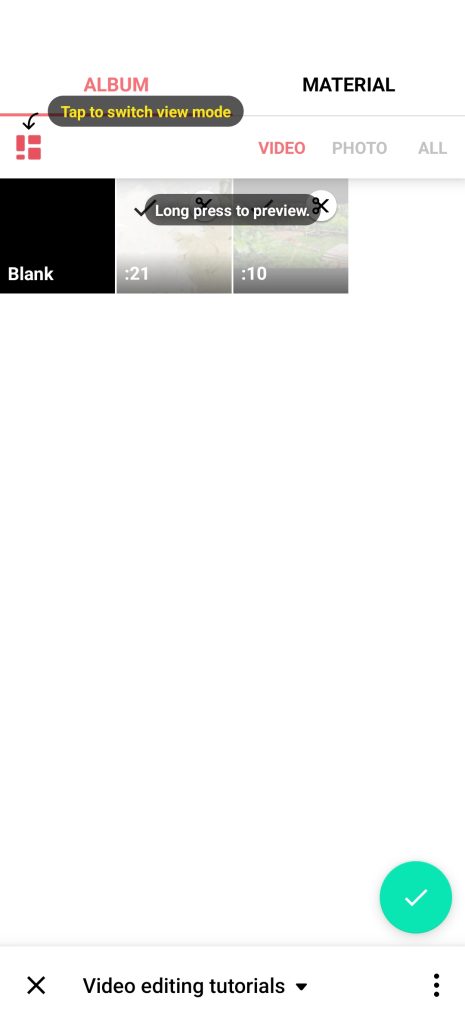
3. They appear in the timeline one after another.
Step 2: Add a Transition
Between each clip, you’ll see a small transition icon (square).
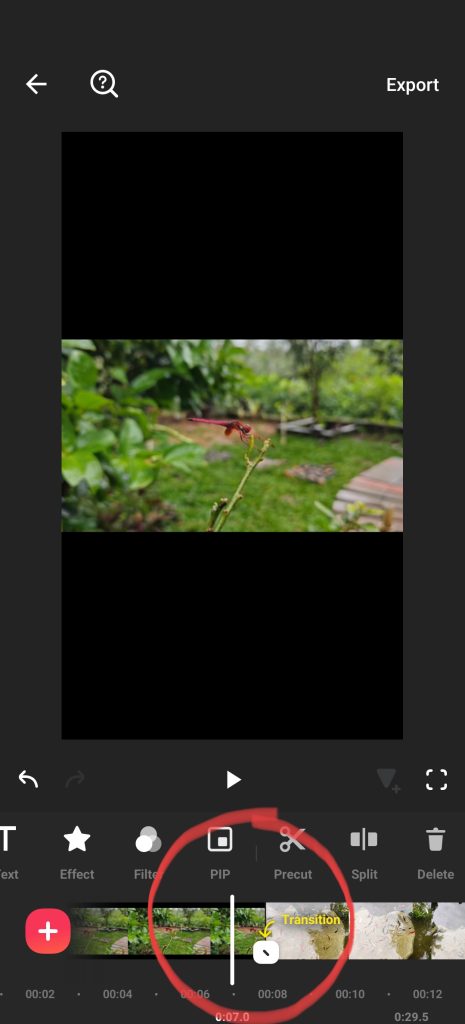
Tap it and browse transition styles:
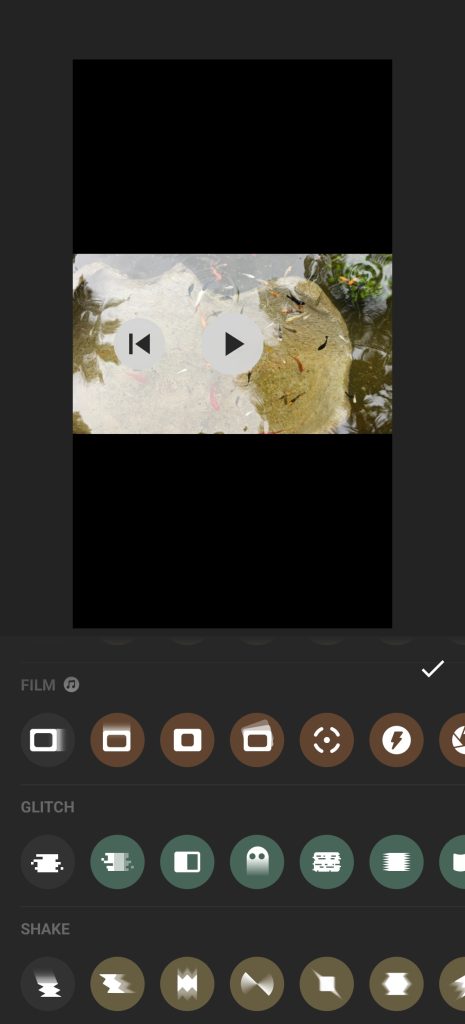
- Basic: Fade, Dissolve, Slide.
- Dynamic: Zoom, Spin, Flash.
- Glitch/Effect: More creative styles.
- Tap to preview.
- Adjust duration with the slider.
- Tap ✓ to confirm.
Step 3: Apply Transitions to All Clips
- If you want the same transition everywhere, select Apply to All.
- Or you can use different transitions for variety.
Step 4: Adjust Timing
- Shorter transitions = faster flow.
- Longer transitions = cinematic feel.
- Experiment until the pacing feels right.
Pro Tips
- Use subtle transitions for professional videos.
- Save flashy ones for fun reels or memes.
- Match transitions with background music beats for more impact.
Free vs Pro
- Free version gives basic transitions.
- Pro unlocks premium packs like 3D, neon, and advanced glitch.
FAQs
1. Can I remove transitions later?
Yes, just tap the transition icon again and select “None.”
2. Do transitions work in photo slideshows?
Yes, they look great in photo collages too.
3. Can I control the speed of a transition?
Yes, use the duration slider to adjust.
Final Thoughts
Transitions in InShot are one of the easiest ways to make your videos flow naturally. By choosing the right style and timing, your edits will look smooth and professional. Remember: sometimes simple is better. Too many flashy transitions can distract viewers.