A plain video often looks dull. Filters and effects are like spices in cooking—they can completely change the mood of your video. InShot offers a wide variety of filters and special effects that make your footage more appealing, whether you want it cinematic, vintage, or trendy.
Let’s dive into how to use filters and effects step by step.
Why Filters and Effects Matter
- Filters: Change the overall tone or color of the video.
- Effects: Add visual styles like glitches, blurs, sparkles, or motion effects.
- Combined: Make your videos more eye-catching and professional.
Example: A sunset video looks more cinematic with a warm filter and a light flare effect.
Step 1: Open Your Video
- Launch InShot.

2. Tap Video → select your clip.
Step 2: Apply a Filter
- Tap Filter from the bottom toolbar.
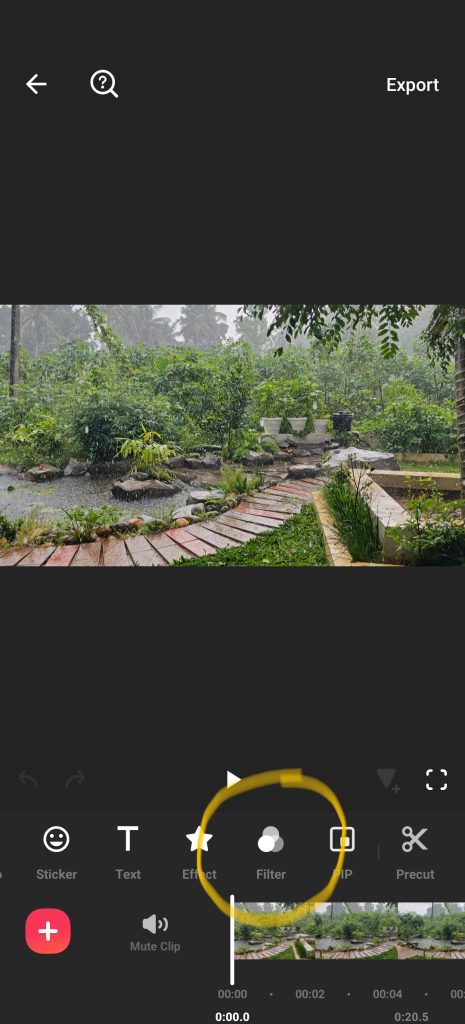
2. Browse categories: Basic, Bright, Warm, Retro, Black & White, etc.
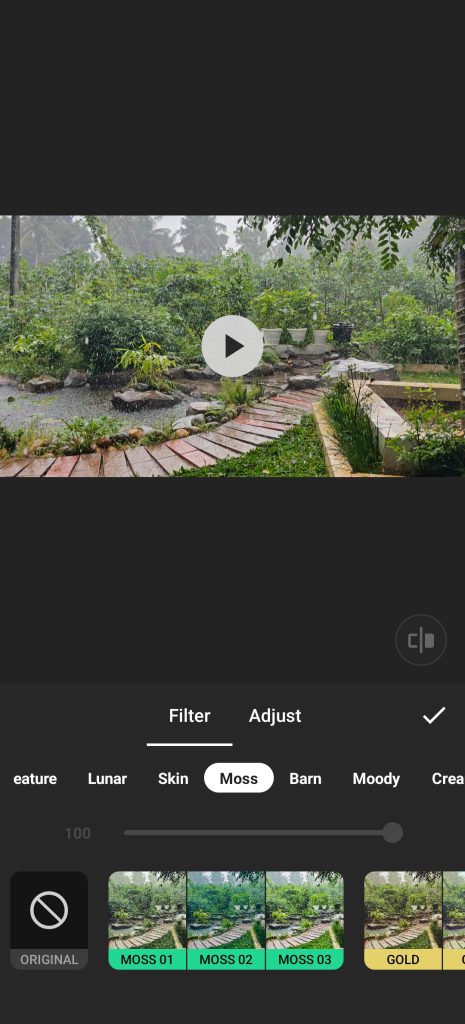
3.Select a filter and adjust intensity with the slider.
4. Tap ✓ to apply.
👉 Example: Use Black & White for a dramatic story, Warm for cozy family videos, or Retro for old-style clips.
Step 3: Adjust Manually
- Inside the Filter section, go to Adjust.
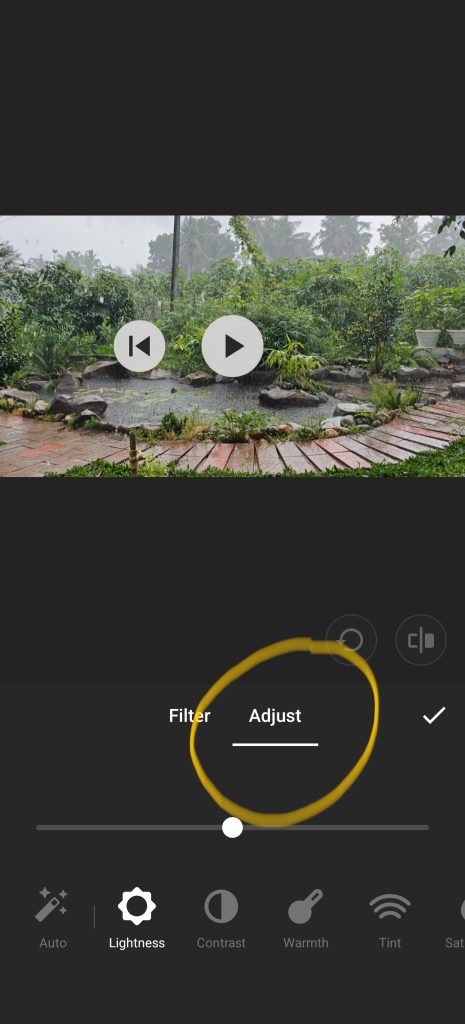
- Fine-tune brightness, contrast, saturation, shadows, and color temperature.
- This gives you full control if you don’t want to rely only on presets.
Step 4: Add Effects
- Tap Effect.
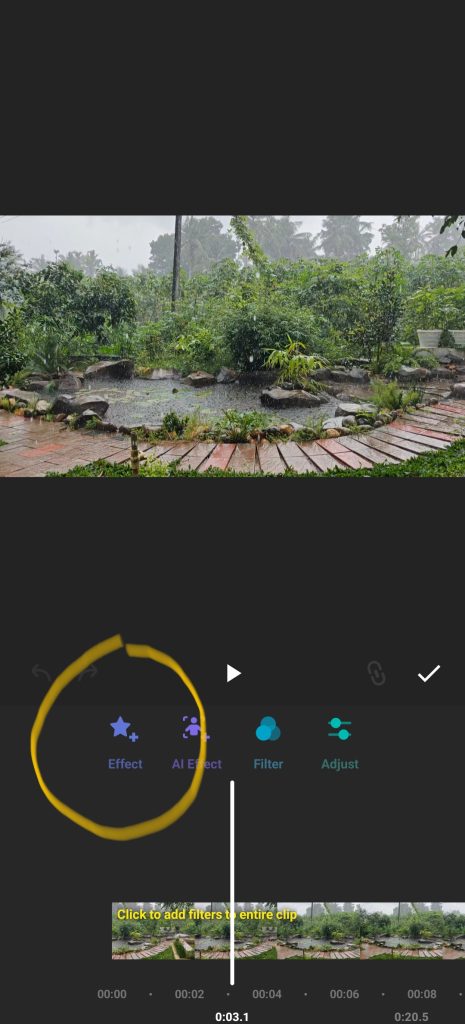
2. Choose from styles: Glitch, Sparkle, Noise, Motion Blur, Zoom, and more.
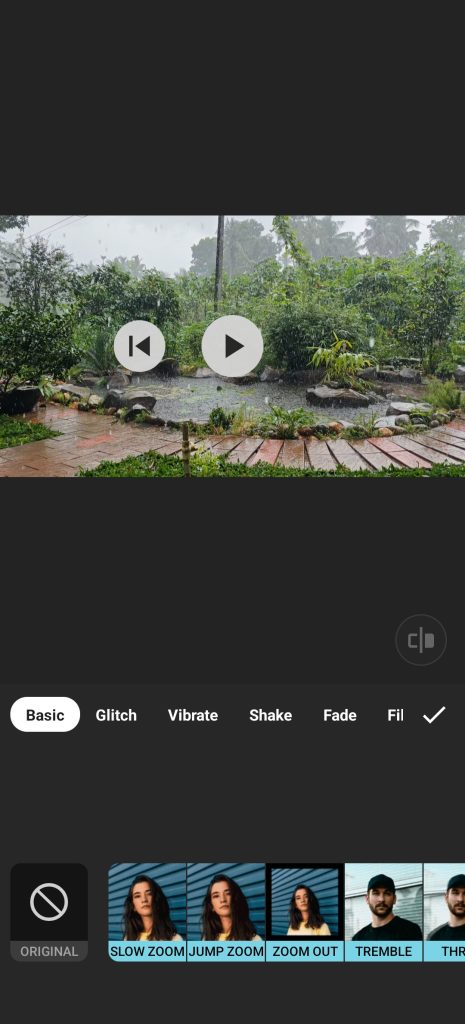
3. Tap to preview, then adjust duration.
4. Apply to specific clips or the whole video.
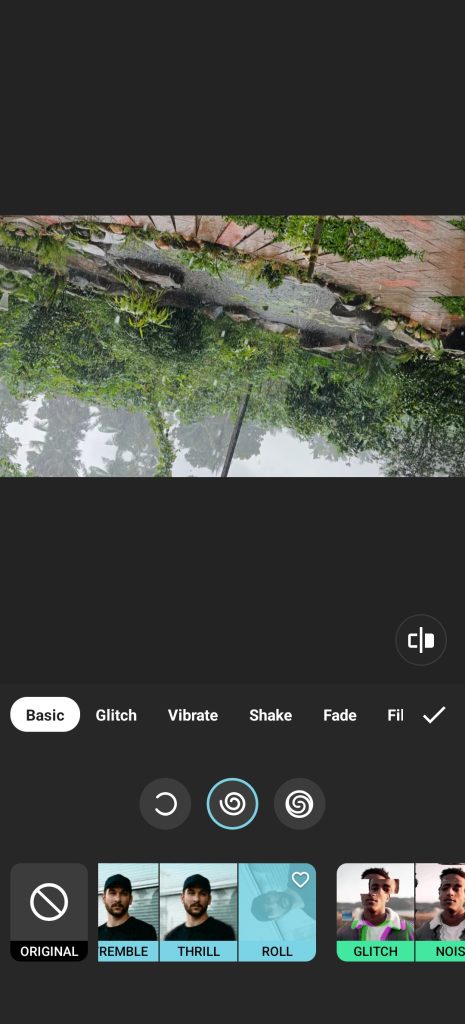
👉 Example: Add a Sparkle effect for fashion videos, or Glitch effect for gaming edits.
Step 5: Mix Filters and Effects
- Use subtle filters for mood.
- Add effects only at key moments.
- Avoid overloading, as too many effects can look unprofessional.
Pro Tips
- Always preview before saving.
- Keep intensity low for a natural look.
- Save your favorite filters for consistent branding across videos.
Free vs Pro
- Free version includes some filters/effects.
- Pro unlocks all premium effects like Cinematic, Neon, and advanced glitch packs.
FAQs
1. Will filters reduce video quality?
No, they only change colors and style, not resolution.
2. Can I use filters on photos too?
Yes, InShot supports both photos and videos.
3. Are effects customizable?
Yes, you can adjust strength and duration.
Final Thoughts
Filters and effects in InShot are easy to use but make a huge difference. With the right choices, your videos can look professional without heavy editing software. Experiment and find a style that fits your personality or brand.